Google Keep is another option in your Self Service store for staff and students to organize all types of notes. It is also an alternative to Evernote which seems to be slowing down and becoming less user friendly. It is a simpler option than Notability, but the features are worth "noting". See what I did there? Of course, you did!

Showing posts with label Organization. Show all posts
Showing posts with label Organization. Show all posts
Monday, March 6, 2017
Tuesday, February 7, 2017
Lunch N' Learn Questions & Answers From Staff
I sent a form out to staff asking for technology integration questions of which I would provide the answer! I didn't provide the link only an image below as I required log in from district.

I created a presentation that we will discuss during lunch!
Great Questions, Helpful Solutions!


Tuesday, March 26, 2013
Friday, January 18, 2013
Laptop Organization in High School Library
This is finally the way we want it.
- All chords hidden
- Easy identification of computers present
- Easy accessibility
Thursday, January 3, 2013
Study Blue
The anatomy teacher wanted study cards that would incorporate pictures and audio.
Study Blue delivers.
Study Blue actually used in class by students. See how they did it!
Study Blue delivers.
Study Blue actually used in class by students. See how they did it!
Thursday, December 13, 2012
TrapIt For Research Integrated With Evernote
One of the great reasons for using Evernote with students came to light TODAY! Our students were not able to use a computer lab. Only the iPads were available. With ease, the Evernote app was utilized on the iPad.
We also introduced students to TrapIt! which is an extremely efficient search engine. Type what you want to search and instantly TrapIt! aggregates all information pertaining to a topic.
The integration with Evernote comes with one tap of a link.
See how it worked!
View all the How To...In Evernote Videos
We also introduced students to TrapIt! which is an extremely efficient search engine. Type what you want to search and instantly TrapIt! aggregates all information pertaining to a topic.
The integration with Evernote comes with one tap of a link.
See how it worked!
View all the How To...In Evernote Videos
Wednesday, September 5, 2012
Google Calendar to Organize Teacher Preps
As a #techcoach with approximately 20 teachers who are part of my specific group that I work with, I was struggling with what teachers had what preps when? In other words, I do think it is important to be visible to talk with teachers as I have noticed that when teachers see you, they usually have an idea or technology question. After we talk, the question is answered or the idea is fostered. Hence, knowing when students have an opportunity to talk is very important!
I decided since my Google calendar is my one stop for organization of time, I would create a Google calendar that would only be used for prep times of teachers. This calendar is separate from my personal calendar. After entering a repeating event every Monday through Friday for each of the teacher's prep times, I am able to display that specific calendar when I want to schedule a meeting with a teacher. I placed the teacher's name and department in the "untitled event" text box. I also made sure that I did not click any email or pop up alerts. The agenda style seems to be best view for seeing the full names of teachers.
I really like that the calendar can be turned off, not displayed, when I don't need it. It really is the perfect tool to overlay on top of my personal calendar.
What would I ever do without the ability to have MULTIPLE Google calendars?
Google calendar set up instructions below:
I decided since my Google calendar is my one stop for organization of time, I would create a Google calendar that would only be used for prep times of teachers. This calendar is separate from my personal calendar. After entering a repeating event every Monday through Friday for each of the teacher's prep times, I am able to display that specific calendar when I want to schedule a meeting with a teacher. I placed the teacher's name and department in the "untitled event" text box. I also made sure that I did not click any email or pop up alerts. The agenda style seems to be best view for seeing the full names of teachers.
I really like that the calendar can be turned off, not displayed, when I don't need it. It really is the perfect tool to overlay on top of my personal calendar.
What would I ever do without the ability to have MULTIPLE Google calendars?
Google calendar set up instructions below:
Tuesday, September 4, 2012
IFTTT Explanation
I have seen a number of references for IFTTT, pronounced LIFT without the L, and decided to investigate. One of the challenges of a #techcoach is finding resources that will be beneficial for teachers and then ORGANIZING them. Organizing them to the point that they can easily be accessed in the future. Teachers provide learning targets and content, #techcoach es provide resources.
First, a person needs to create an IFTTT account. Took me seconds. Then a TRIGGER needs to happen. This means that IF This Happens, Then That (Action) should take place. I am utilizing Evernote for organizing of all resources. One major reason is that when I Google something, I have my Evernote account as a resource that should be searched as well. See how to set this up! More Info From iPad Today!
See the video on how to set up a Trigger! Happy organizing!
First, a person needs to create an IFTTT account. Took me seconds. Then a TRIGGER needs to happen. This means that IF This Happens, Then That (Action) should take place. I am utilizing Evernote for organizing of all resources. One major reason is that when I Google something, I have my Evernote account as a resource that should be searched as well. See how to set this up! More Info From iPad Today!
See the video on how to set up a Trigger! Happy organizing!
Saturday, August 25, 2012
After Updating An App How Do You Remember Why You Updated It?
Have you experienced this?
See nine updates ready for you in the Apple App store, click Update All, enter your password and watch the downloads begin. The excitement builds and then it happens...
You forget why you were so excited to update it in the first place!
Because of this, I have started to create Evernote notes that include iPad screen shots of updates the developer is touting. Examples are below.

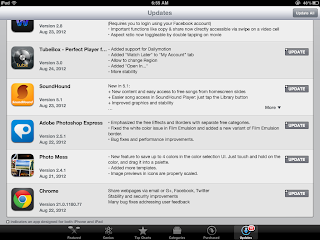
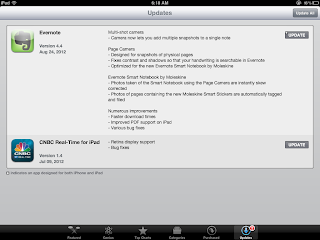 Creating this organizational tool has allowed me to take advantage of the updates. Otherwise, I would really not remember or act on the updates that are free! Give it a try!
See nine updates ready for you in the Apple App store, click Update All, enter your password and watch the downloads begin. The excitement builds and then it happens...
You forget why you were so excited to update it in the first place!
Because of this, I have started to create Evernote notes that include iPad screen shots of updates the developer is touting. Examples are below.


Monday, January 9, 2012
Educreations App - Activity and Features of App
The overall lesson in which we implemented Educreations is here. The specific lesson is here. We originally were going to use Screenchomp, but with new district settings to the network, we were having trouble saving it to the cloud. This is our reason for trying Educreations.
While the app itself is great. This has been a struggle. As with anything there is a learning curve. What I want is to have students create a lesson using the iPad to prove to me that they understand the concepts being taught. Educreations is perfect for this! It has a great amount of features which you will see. One negative is the challenge to post it online in an area like Twitter.
However, it takes a few tricks to get the creation to be finalized and viewed. This is our first attempt at using Educreations. I am sure it will get better.
There might be a better way! If so, please leave a comment.
Initially, on Friday, we didn't give them much of a direction as we wanted students to create on their own. Today, I felt we needed to give some direction. The organization of four slides helped greatly.
I really liked how this student CHOSE to use a different app to enhance his Educreations. Awesome to see students take control of their learning!
I apologize for the video being turned. The content is outstanding as a student talks about how to save the Educreation without logging in. I am so willing to hear from students on what they have learned and they love being video taped and put on YouTube!
- Our tech people are working very hard to resolve the issue. They are great and will!
While the app itself is great. This has been a struggle. As with anything there is a learning curve. What I want is to have students create a lesson using the iPad to prove to me that they understand the concepts being taught. Educreations is perfect for this! It has a great amount of features which you will see. One negative is the challenge to post it online in an area like Twitter.
- Very important video at the end!
However, it takes a few tricks to get the creation to be finalized and viewed. This is our first attempt at using Educreations. I am sure it will get better.
There might be a better way! If so, please leave a comment.
Initially, on Friday, we didn't give them much of a direction as we wanted students to create on their own. Today, I felt we needed to give some direction. The organization of four slides helped greatly.
I really liked how this student CHOSE to use a different app to enhance his Educreations. Awesome to see students take control of their learning!
I apologize for the video being turned. The content is outstanding as a student talks about how to save the Educreation without logging in. I am so willing to hear from students on what they have learned and they love being video taped and put on YouTube!
Friday, August 26, 2011
Subscribe to:
Posts (Atom)
